






Use only the file downloaded from this website.
Installation help
Install NDPix safely
NDPix is a desktop photo editor. This guide explains, in plain steps, how to install it on macOS or Windows and what to do if your computer asks for confirmation.
Choose your system
Show only the steps for your computer.
Choose an option above to show the installation help.
If the warning shows another app name, cancel.
If you are unsure, delete the file and download it again.
macOS
If you use a Mac
Use these steps to install the macOS DMG.
macOS 13 Ventura or later, with native support for both Intel 64-bit Macs and Apple Silicon Macs.
1
Download from this website
Only use the NDPix file downloaded from this website.
2
Open the DMG file
Double-click the downloaded DMG file to open the installer window.
3
Move NDPix to Applications
Drag NDPix into the Applications folder if macOS shows that installer window.
4
Open NDPix from Applications
Open NDPix from the Applications folder or Launchpad.
5
If macOS asks for confirmation
Confirm only if the app name is NDPix and the file came from this website.
Use only the file downloaded from this website.
If the warning shows another app name, cancel.
If you are unsure, delete the file and download it again.
Windows
If you use Windows
Use these steps if Windows shows SmartScreen or asks for permission.
Windows 10 version 1809 or later, 64-bit. Windows 11 supported.
1
Download from this website
Only use the NDPix file downloaded from this website.
2
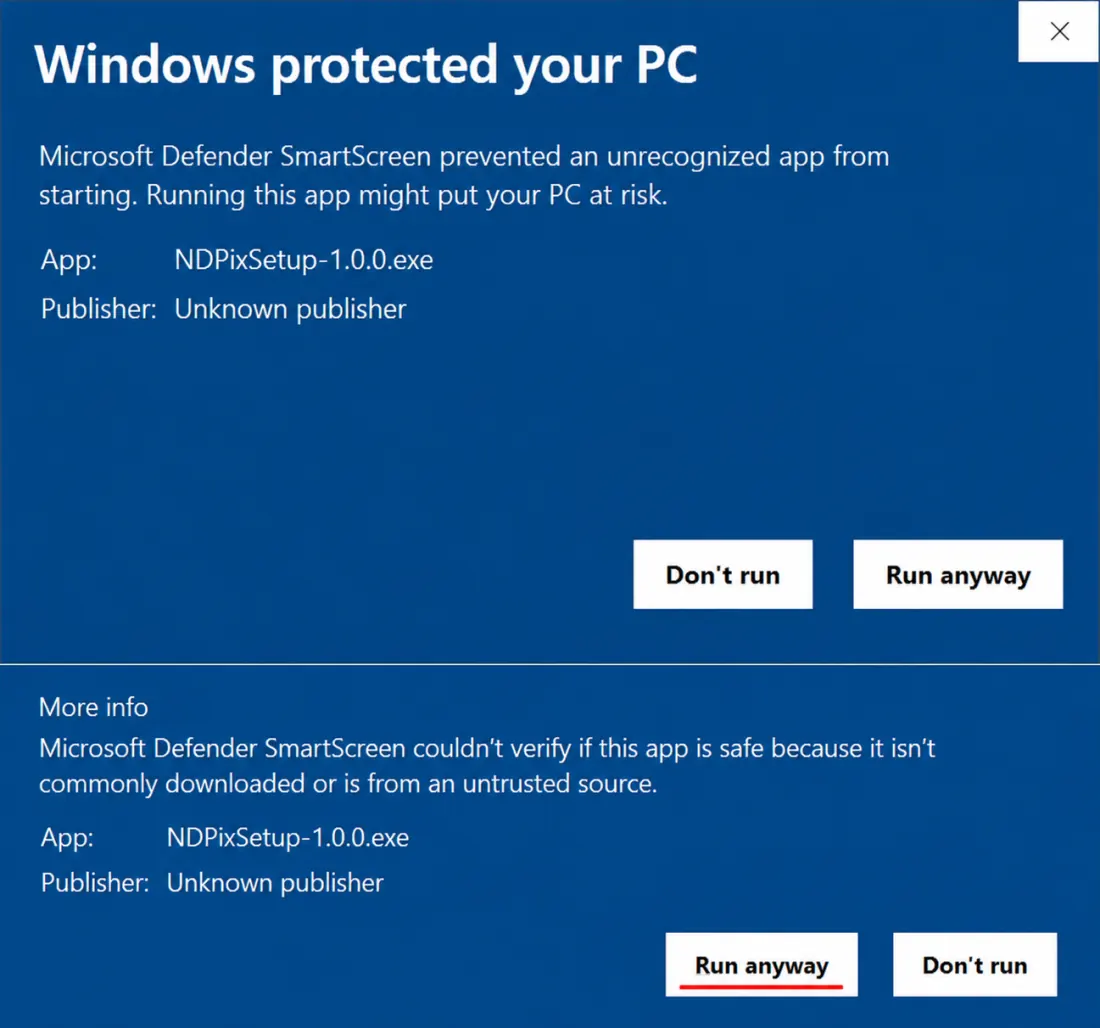
If SmartScreen appears, choose “More info”
Windows can show this warning for new apps. It does not always mean something is wrong.
3
Choose “Run anyway”
Only continue if the file is named NDPix and came from this website.
4
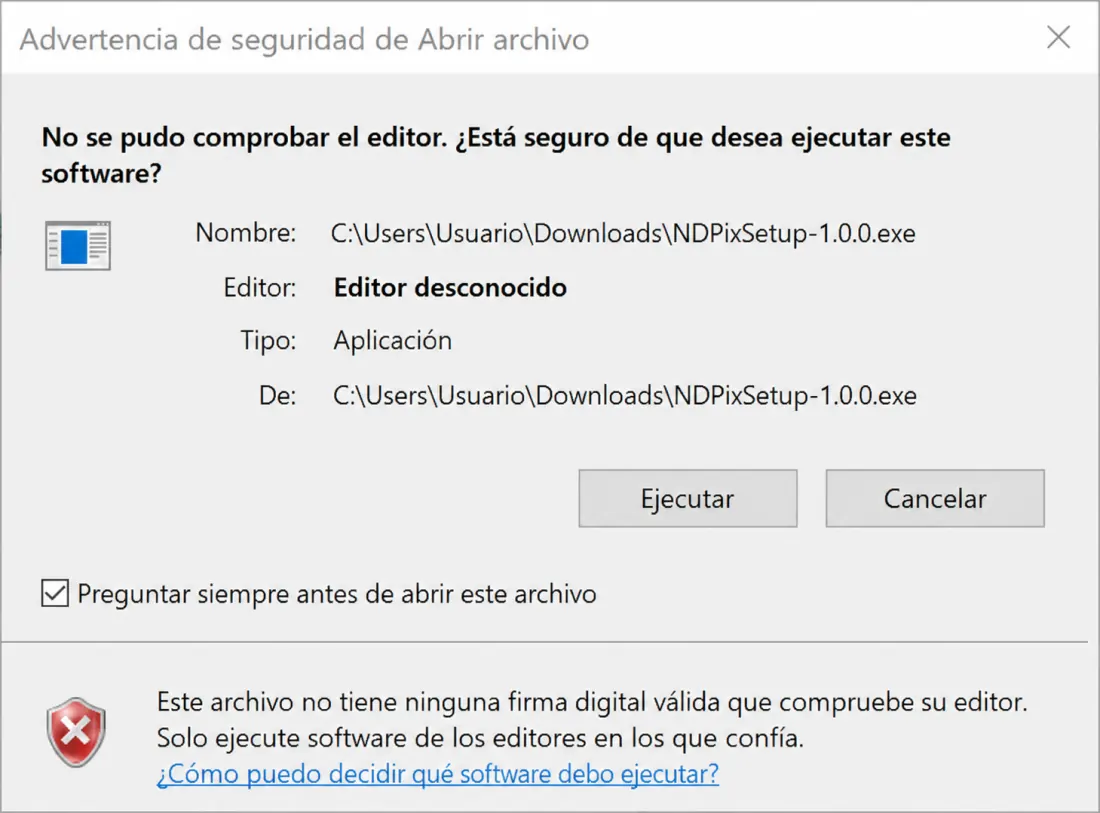
Allow the installer
If Windows asks for permission, allow it only if the app name is NDPix.
5
Finish and open NDPix
When the installer finishes, open NDPix from the shortcut or Start menu.
If something looks different
Close the warning, delete the downloaded file, and download NDPix again from this website. If you still have trouble, contact me before forcing the installation.